Creating Automation Tasks
Learn how to set up automated tasks for gathering, collection, training, and more
Video Tutorial
Video Tutorial: Creating Tasks
(Video will be added soon)
Video Overview: This tutorial demonstrates how to create different types of automation tasks, configure their settings, and schedule them to run automatically.
Available Task Types
| Task | What it does | Plan |
|---|---|---|
| Collect | Collects finished resources from city buildings | Free, Pro |
| Gather | Sends fleets to gather a chosen resource from the map; stops when fleets or troops run out | Free, Pro |
| Train | Recruits troops at Camps (Infantry) or Factories (Shredders), by tier or by named unit; can use speed-ups | Pro |
| Audit | Records your total Food, Oil, Steel and Minerals from the Bag | Pro |
| Shield | Keeps a Peace Shield up for a protection window, using shields you already own | Pro |
| Daily | Resource Sale (free sales), Harvest Skill and Free Recruit, once per day | Pro |
How to Create a Task
Identify the Add Action Button
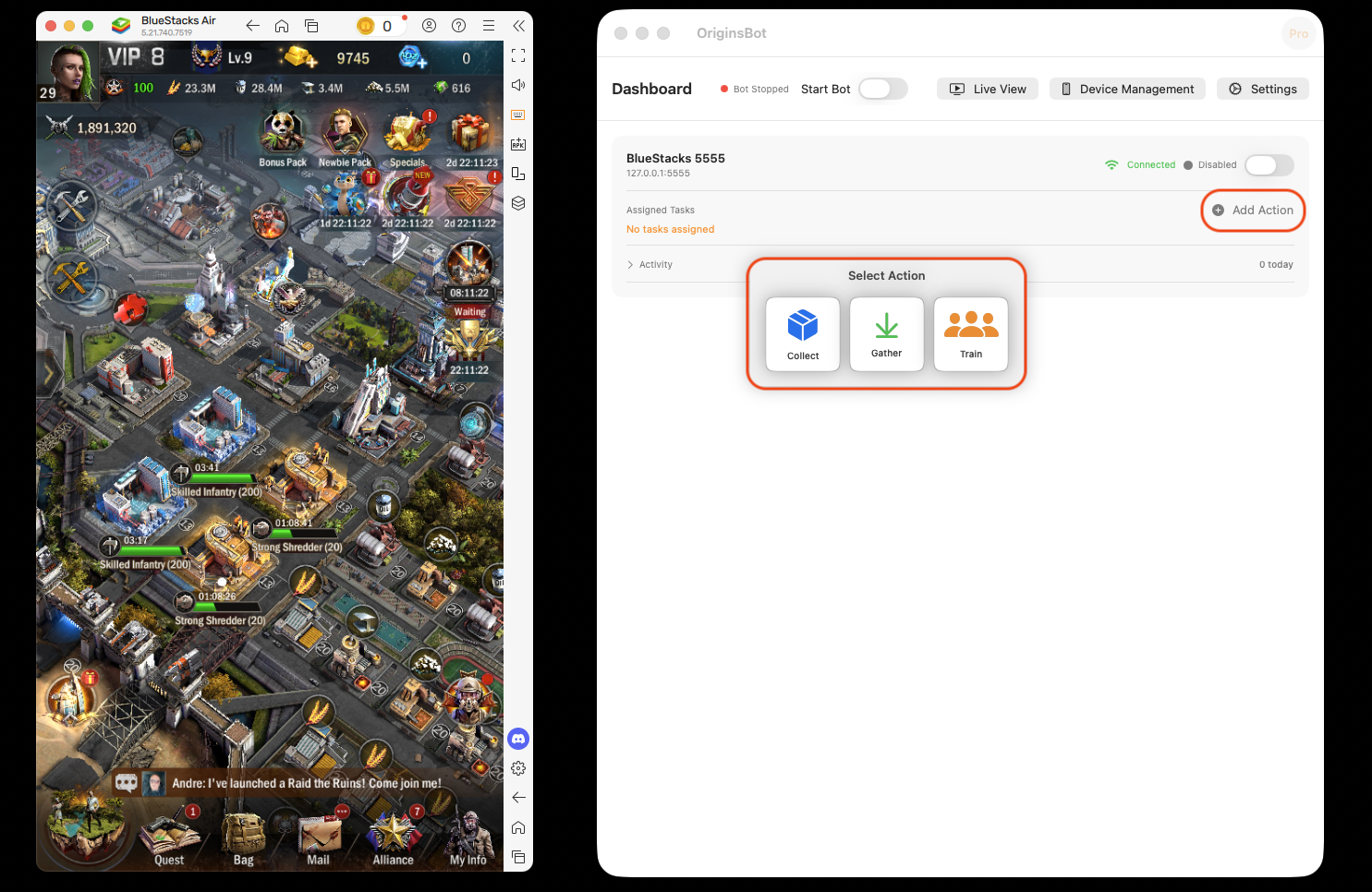
From the main screen, locate the "Add Action" button for the specific device you want to automate. Each connected device will have its own task management interface.
Select Task Type
Choose the type of task you want to create from the available options. The task types displayed will vary based on your subscription tier.
Available Task Types:
- • Collect and Gather - Free and Pro
- • Train, Audit, Shield, Daily - Pro
Configure Task Settings
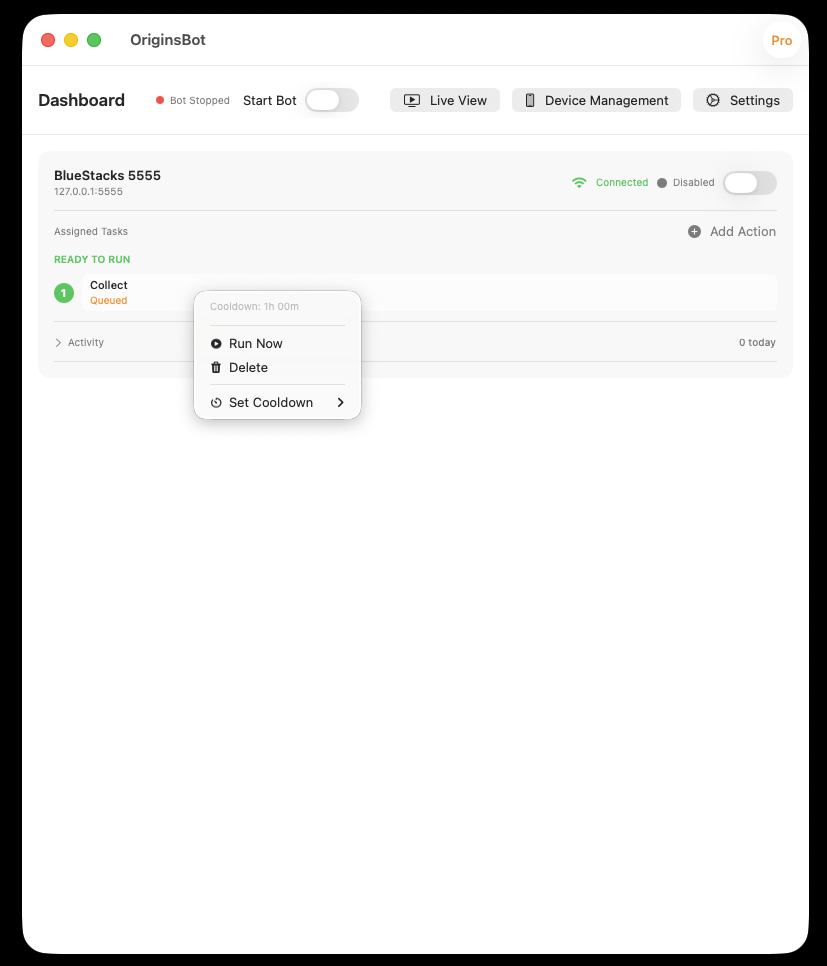
Once the task is added, right-click on it to access configuration options. The cooldown period is set to 1 hour by default.
Available Options (via right-click):
- • Cooldown - Configure how often the task runs
- • Run Now - Execute the task immediately
- • Delete - Remove the task from the device
Important In-Game Setup Requirements
Before creating Collection or Gathering tasks, you must configure specific elements within Age of Origins. Follow these setup requirements to ensure optimal automation performance.
Collection Tasks
⚠️ Important Setup:
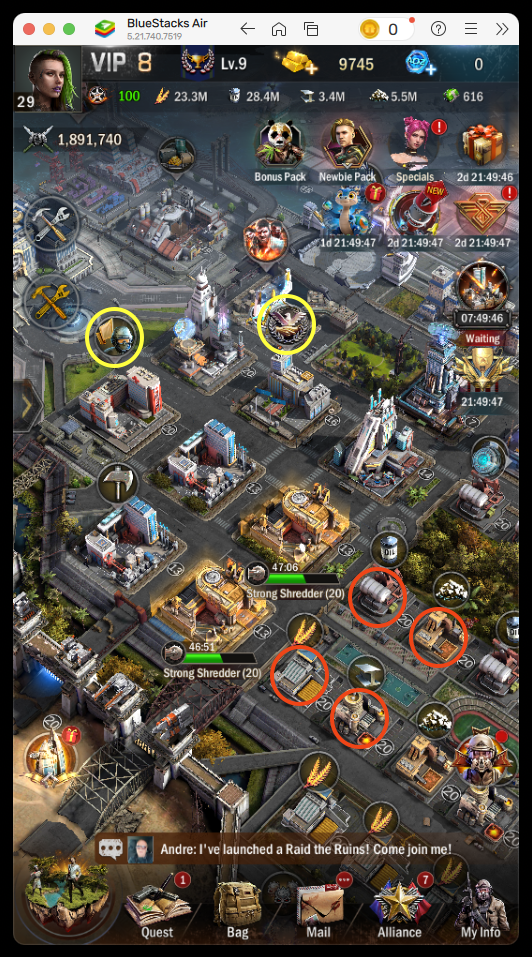
To provide OriginsBot the best chance of collecting all resource types, ensure one of each type of resource building (food, oil, steel, minerals) occupies the 4 locations shown in the screenshot below.
Gathering Tasks
💡 Pro Tip:
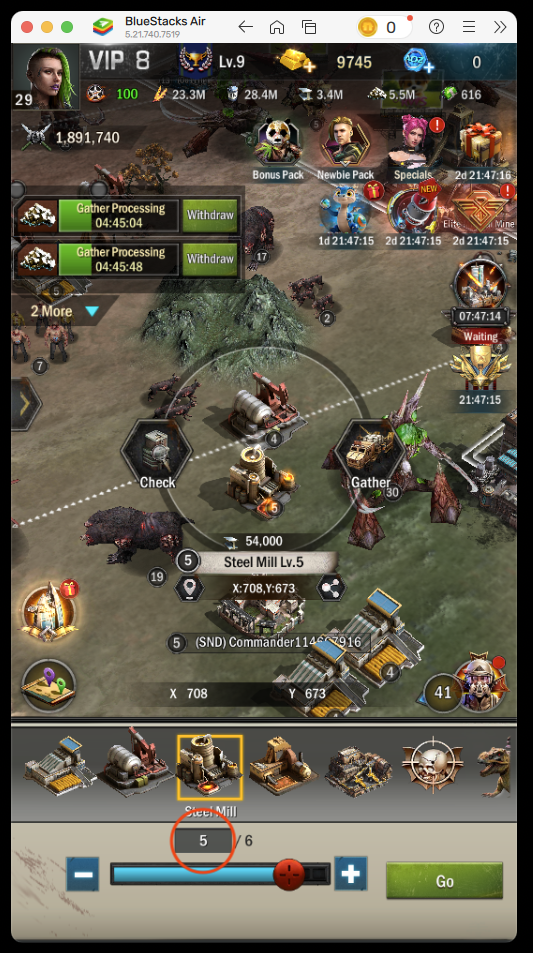
Before creating a gathering task, set the resource tile level you wish to search for in the game device first. This is done by simply searching for the desired level for each resource type in Age of Origins.
OriginsBot will use the last searched level. Level 4 or 5 tiles tend to be most reliable.
Task Configuration Details
Collection Tasks
Collection tasks automatically gather food, oil, steel, minerals, help alliance members, and collect healed troops from the hospital.
Configuration:
- • Cooldown: Set how frequently the collection task runs (default: 1 hour)
📌 Setup Required: See the Important In-Game Setup section above for resource building placement requirements.
Task Failing Repeatedly
If tasks keep failing, check the following:
- • Check task logs for specific error messages
- • Verify game state matches task requirements (i.e., cooldown is set appropriately so tasks can succeed)
- • Confirm the game window is on the same desktop as OriginsBot and not minimized
- • Confirm screen was not turned off or asleep
Gathering Not Working
If gathering tasks aren't sending troops:
- • Ensure you have troops available to send
- • Ensure you have fleets available
- • Verify the resource node level you are searching for is available on the map (lvl6 can often be exhausted)
Gathering Tasks
Gathering tasks send troops to collect resources from tiles on the world map.
Configuration:
- • Resource Type: Select from the dropdown menu (food, oil, steel, minerals)
- • Cooldown: Set gathering frequency (accessible via right-click)
- • Fleet Count: Number of fleets to send (accessible via right-click)
📌 Setup Required: See the Important In-Game Setup section above for tile level configuration requirements.
Troop Training Tasks
Troop Training tasks continuously train military units to maximize your army size 24/7.
Available Unit Types:
- • Any Infantry or Any Shredder, with a Tier: Highest (the top tier each building has unlocked) or a specific level. Infantry are on odd tiers, Shredders on even ones, so only valid tiers are offered.
- • A named unit, such as Wasteland King (Factory Lv.10) or Skilled Infantry (Camp Lv.3). OriginsBot learns unit names from the recruit screen as it trains, so the list fills in over time.
- • If a building hasn’t unlocked the chosen tier, OriginsBot uses the next one down.
No in-game setup needed
OriginsBot opens each Camp or Factory from the quick-access panel, picks the tier tab and unit you chose, and recruits. A run counts as done once troops are recruited, even if a later building can’t be opened.
Tips & Best Practices
Optimize Gathering Cooldown
Send your fleets to gather and note the time remaining until gathering completes. Update your cooldown with a few minutes buffer to ensure fleets arrive back to the city before the cooldown expires!
Optimize Troop Training Cooldown
Cooldown for troop training varies by building and troop level. Once you have troops training, configure the cooldown to ensure they have finished when the cooldown expires.
Test Before Leaving Unattended
Observe tasks complete successfully before leaving them unattended. Monitor for at least one full cycle to verify everything is working as expected.
Optimize Task Frequency
Recommended cooldown intervals for optimal performance:
- • Collection: 60 minutes is a good balance. Each building can store 10 hours worth of production, so use what suits your workflow!
- • Alliance Help: Automatically runs with collection tasks
- • Gathering: Optimize your cooldown based on resource tile level and march times
Monitor Task Performance
Regularly check task logs and statistics to ensure tasks are running successfully. Adjust settings if tasks are failing or not performing as expected.
Have questions or suggestions? Contact us on Discord
Respect Game Mechanics
Remember that automation should enhance your gameplay, not replace it entirely. Use OriginsBot for repetitive tasks while you focus on strategy, alliance management, and events.
Managing Your Tasks
Enable/Disable Devices
Toggle entire devices on or off to temporarily stop all automation for that device. This is useful when you need to manually control a specific account.
Disabled devices retain all their tasks and settings, and can be re-enabled anytime.
View Task Logs
Check task logs to see execution history, success rates, and any errors that occurred.
Logs help troubleshoot issues and verify tasks are working correctly.
Common Issues
Task Not Running
If your task isn't executing:
- • Verify the task is enabled (not disabled)
- • Check that the device is online and connected
- • Ensure Age of Origins is open and at the main screen
- • Review task schedule settings
Task Failing Repeatedly
If tasks keep failing:
- • Check task logs for specific error messages
- • Verify game state matches task requirements
- • Confirm the game window is on the same desktop as OriginsBot and the screen isn’t locked
- • Make sure no popups or dialogs are blocking the screen
Gathering Not Working
If gathering tasks aren't sending troops:
- • Ensure you have available troops to send
- • Check that your resource nodes aren't already occupied
- • Verify the search radius isn't too small
- • Make sure your commanders are available
Start Automating!
You're now ready to create powerful automation tasks and let OriginsBot handle the repetitive gameplay for you.