BlueStacks Configuration Guide
Optimize your BlueStacks settings for the best performance with OriginsBot
This guide is for BlueStacks
OriginsBot now recommends PlayCover, which runs the iPad version of Age of Origins natively on Apple Silicon Macs. BlueStacks is still supported, but new setups should follow the PlayCover setup guide.
About These Settings
The recommended settings below are optimized for most users. However, you may need to adjust them based on your Mac's capabilities. If you experience performance issues, refer to the BlueStacks performance help pages for additional guidance.
Step 1: Enable Android Debug Bridge (ADB)
OriginsBot requires ADB to communicate with BlueStacks. This is a critical setting that must be enabled for OriginsBot to work.
Instructions:
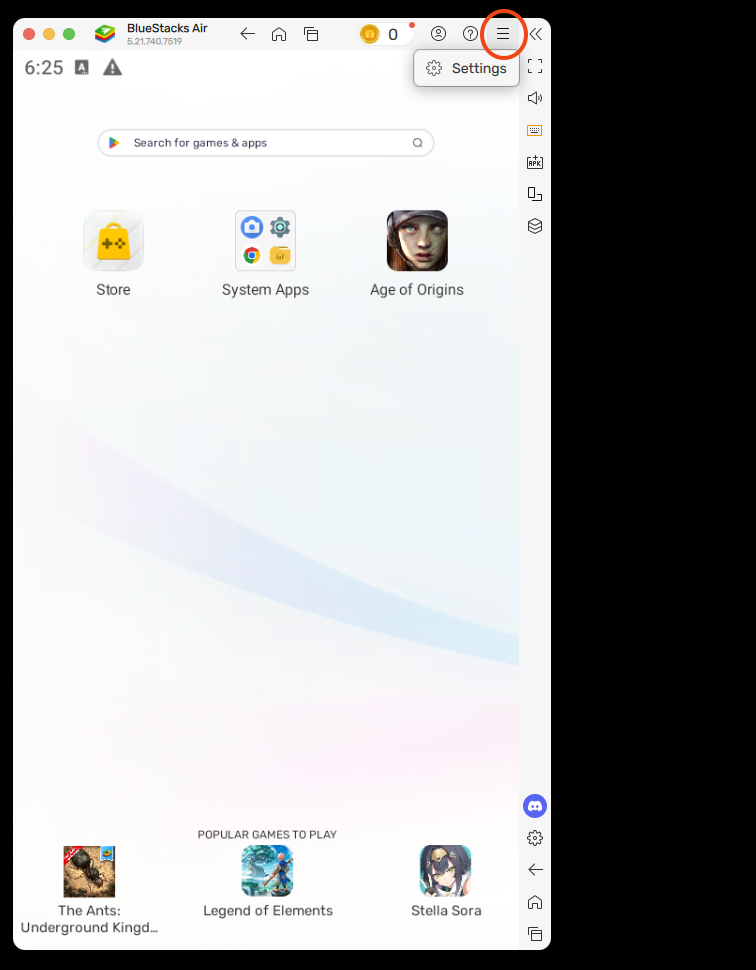
- 1. Open BlueStacks and click on the hamburger menu (three horizontal lines) in the top-right corner
- 2. Select Settings from the dropdown menu
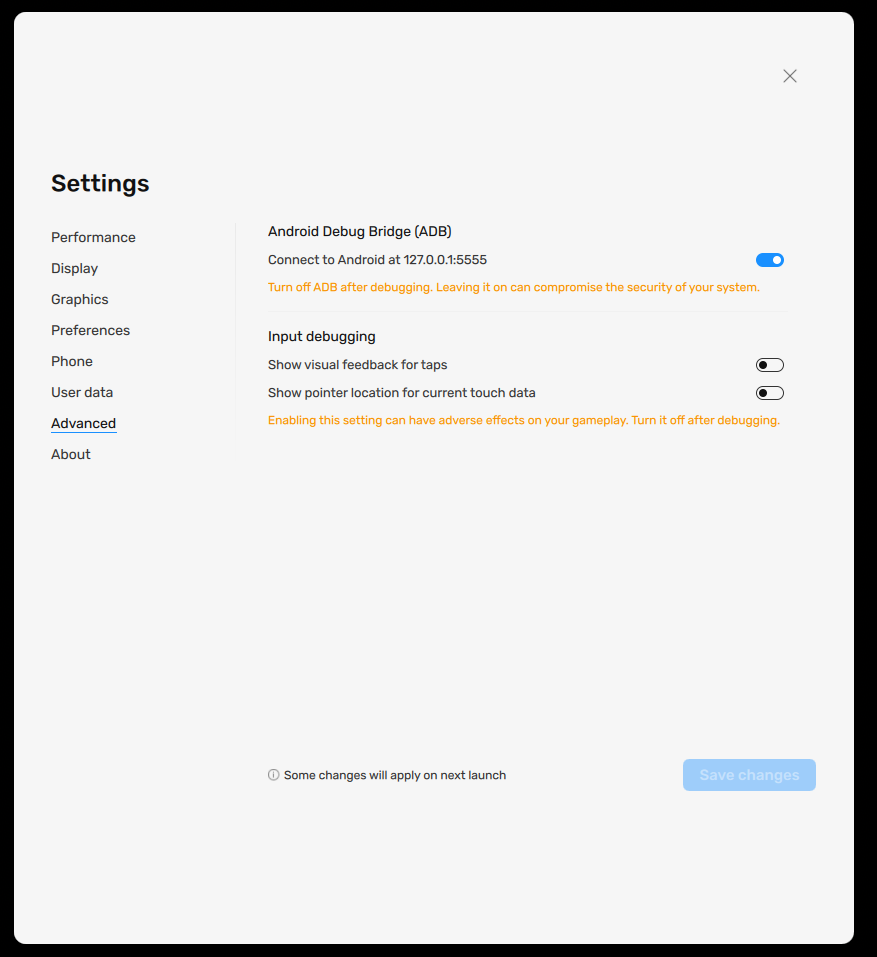
- 3. Navigate to the Advanced tab
- 4. Find Android Debug Bridge and toggle it ON
- 5. Click Save changes and restart BlueStacks when prompted
Step 2: Configure Display Settings
OriginsBot is optimized for specific display settings. Using the recommended resolution ensures the best accuracy and performance.
Recommended Settings:
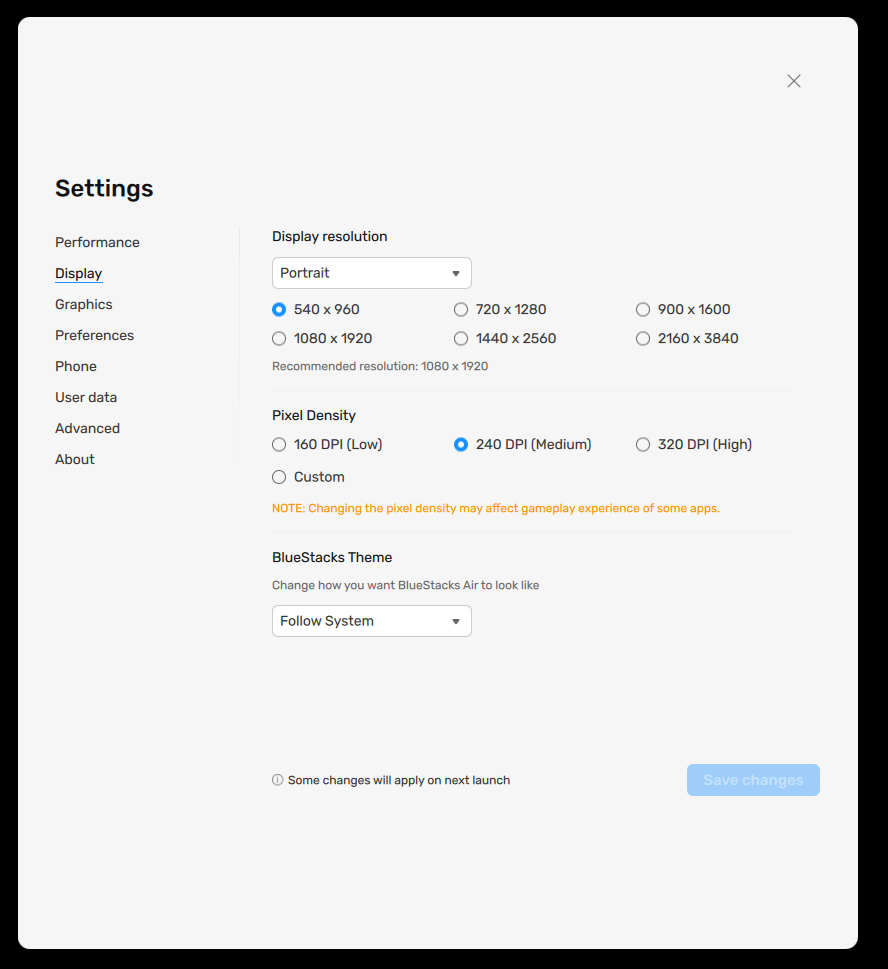
- 1. Open Settings → Display
- 2. Set Display Resolution to Portrait
- 3. Set Width to 540 and Height to 960
- 4. Set DPI to 240
- 5. Click Save changes and restart BlueStacks
Orientation
Portrait
Resolution
540 × 960
DPI
240
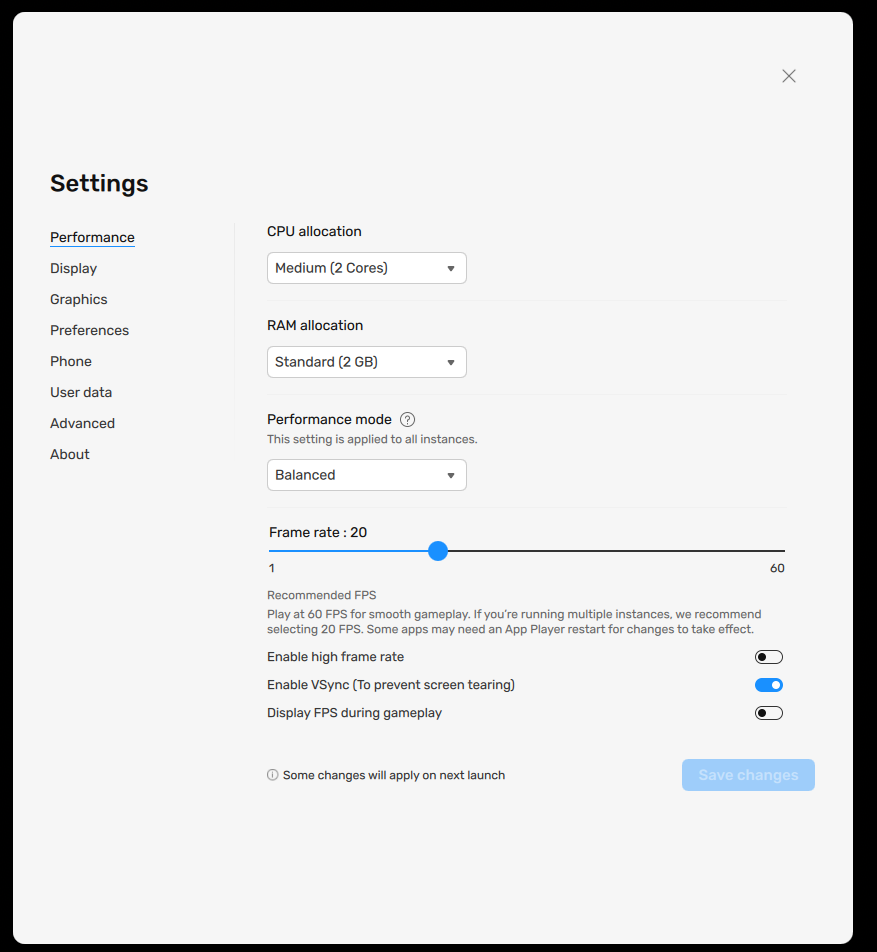
Step 3: Optimize Performance Settings
These settings balance performance with resource usage. Adjust based on your Mac's capabilities and how many instances you're running.
Recommended Settings:
- 1. Open Settings → Performance
- 2. Set CPU to Medium (2 cores)
- 3. Set Memory (RAM) to Standard (2GB)
- 4. Set Frame Rate to 20 FPS
- 5. Click Save changes and restart BlueStacks
CPU Cores
Medium (2)
RAM
Standard (2GB)
Frame Rate
20 FPS
Adjust Settings for Your Machine
The settings above are recommended starting points. If you have a powerful Mac with 16GB+ RAM and multiple cores, you can increase these values. If experiencing lag or high resource usage, decrease them.
Additional Tips
Multiple Instances
If you're running multiple BlueStacks instances, consider lowering the CPU and RAM allocation per instance. For example, with 3 instances, you might use 1 core and 1.5GB RAM each.
Graphics Settings
Keep graphics mode on the default setting. If you experience visual issues, try switching between:
- • Compatible (default)
- • Performance (if experiencing lag)
Need More Help?
For additional performance optimization guidance, visit the official BlueStacks support pages:
BlueStacks Performance GuideConfiguration Complete!
Your BlueStacks instance is now configured for optimal performance with OriginsBot. Next, learn how to connect your devices to OriginsBot.